Understanding Virtual Desktop Technology
What is a Virtual Desktop?
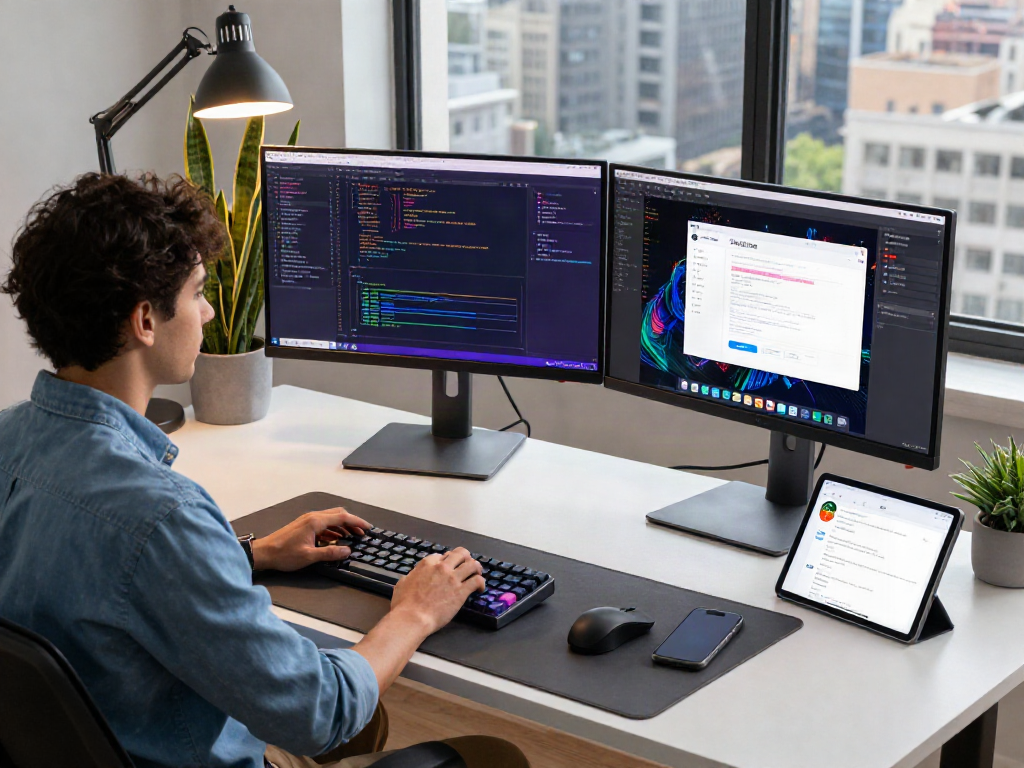
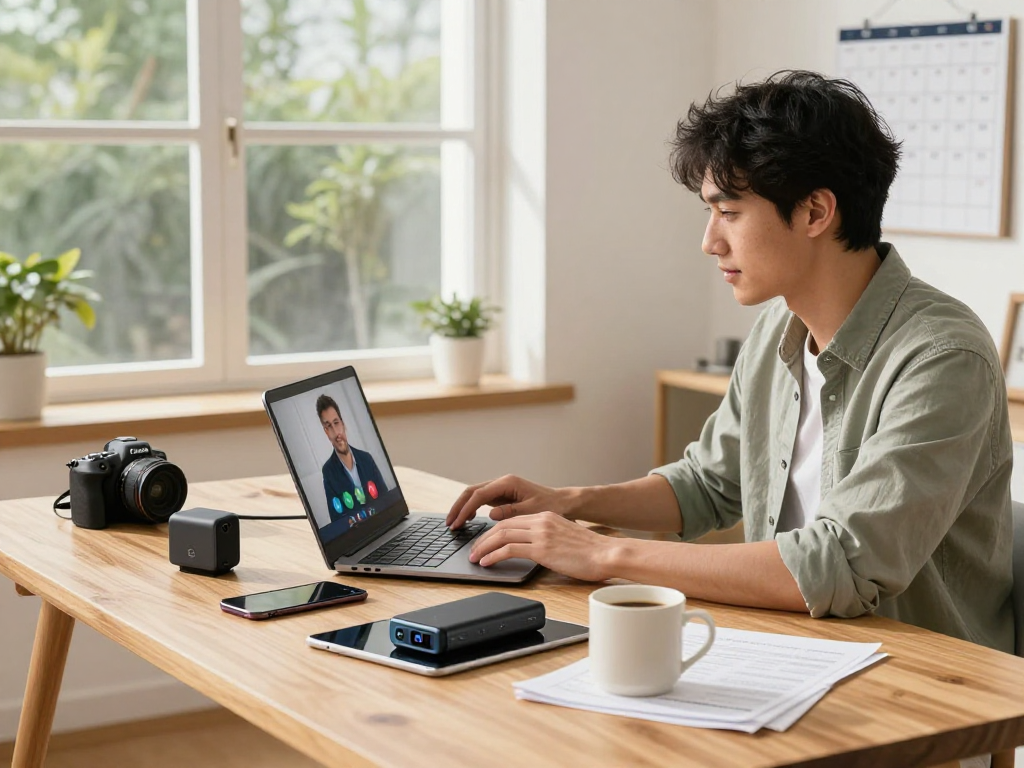
A Virtual desktop is a software-based simulation of a physical desktop environment that operates on remote servers rather than a local machine. This technology allows users to access their desktop from anywhere, enhancing flexibility and mobility. As organizations increasingly embrace digital transformations, virtual desktops have emerged as pivotal tools, enabling employees to connect to their workspace from various devices, including PCs, tablets, and smartphones, without losing functionality or performance.
Key Components of Virtual Desktop Solutions
Several critical components comprise effective virtual desktop solutions:
- Hypervisor: This software layer allows multiple operating systems to run on a single physical machine. It abstracts and manages system resources, allowing users to deploy virtual desktops rapidly.
- Virtual Desktop Infrastructure (VDI): This crucial framework hosts user desktops on centralized servers. VDI enables easy management, security enforcement, and scalability as desktop environments are provisioned and orchestrated from a singular point.
- Remote Desktop Protocol (RDP): This technology enables remote connections and provides users with access to their virtual desktops. RDP ensures smooth interactions, even over varying network conditions.
- End-User Devices: Devices used by employees, which can range from traditional PCs to smartphones and thin clients, play a significant role in accessing virtual environments.
Benefits of Using a Virtual Desktop
The implementation of virtual desktop technology comes with several advantages, making it a preferred choice for many organizations:
- Increased Mobility: Employees can access their workspace from any location, enhancing productivity and work-life balance.
- Cost Efficiency: Virtual desktops often lead to reduced hardware costs, as users can utilize lower-spec devices to access powerful server resources.
- Enhanced Security: Sensitive data resides on central servers rather than individual devices, minimizing risks associated with data breaches and lost hardware.
- Simplified Management: Centralized management of software updates, security patches, and user settings streamlines IT processes and reduces downtime.
Setting Up Your Virtual Desktop
Essential Hardware Requirements
Setting up a virtual desktop requires careful consideration of hardware specifications. While virtual desktops can reduce dependency on high-spec local machines, servers that host these desktops need robust configurations:
- Servers: High-performance servers with substantial CPU, RAM, and storage capabilities are essential. Consider using scalable servers that can grow with your organization's needs.
- Network Infrastructure: A strong and stable network connection is crucial for low-latency access to virtual desktops. Invest in high-speed internet and reliable routers to manage traffic effectively.
- End-User Devices: While less powerful, the devices used by end-users should be compatible with the virtual desktop environment. Ensuring they have sufficient processing power and memory for smooth operation is critical.
Software Configuration for Optimal Performance
To ensure effective performance of your virtual desktop, proper configuration of the software environment is vital:
- Operating System: Choose an operating system that aligns with your business requirements and is compatible with your applications.
- Application Deployment: Utilize application virtualization tools to streamline how software is delivered and managed across the organization.
- Monitoring Tools: Employ performance monitoring tools to assess the virtual desktop's operation, ensuring issues are swiftly addressed.
Troubleshooting Common Setup Issues
Even with thorough preparation, issues during the setup of virtual desktops can arise. Here are common problems and their solutions:
- Connectivity Issues: If users experience difficulties connecting, check network settings and firewall configurations.
- Performance Lags: Performance issues could be tied to insufficient server resources or network bottlenecks. Evaluate server specifications and optimize network bandwidth.
- Compatibility Problems: Ensure that the chosen operating system and applications are compatible with the virtual desktop infrastructure and end-user devices.
Enhancing User Experience on Virtual Desktop
Customizing User Interface Preferences
A positive user experience is paramount when adopting virtual desktop solutions. Customizing the user interface can significantly enhance usability:
- Theming: Allow users to customize their desktop backgrounds, icons, and color schemes to maintain a familiar environment.
- Shortcuts: Enable users to create shortcuts for frequently used applications and files for quicker access.
- Workspace Organization: Encourage users to organize their virtual desktops by grouping similar applications and tasks.
Integrating Productivity Tools
Integrating productivity tools into the virtual desktop environment can help boost efficiency and collaboration among teams:
- Project Management Software: Use project management tools for real-time tracking and collaboration on tasks.
- Communication Platforms: Implement chat and video conferencing tools to facilitate better communication among team members.
- File Sharing Solutions: Enable seamless sharing and synchronization of files through cloud-based services.
Maintaining Security and Privacy
Security is a critical aspect of utilizing virtual desktops. Organizations must focus on key practices to protect sensitive data:
- Data Encryption: Use encryption for data at rest and in transit. This ensures that information remains secure, even if intercepted.
- User Access Controls: Implement strict access controls, allowing users to access only the resources they need.
- Regular Updates: Keep the operating system and applications updated to patch vulnerabilities and enhance security.
Advanced Features of Virtual Desktop
Collaborative Tools and Remote Access
One of the strongest advantages of virtual desktops is their ability to facilitate collaboration across teams:
- Remote Access Capabilities: Employees can join meetings, share screens, and collaborate on documents in real-time, regardless of geographical location.
- Shared Workspaces: Utilize shared virtual environments where teams can collectively work or brainstorm on projects.
Performance Metrics and Monitoring
Monitoring virtual desktop performance is crucial to ensure an efficient user experience. Key metrics to track include:
- Resource Utilization: Monitor CPU and RAM usage across the infrastructure to prevent bottlenecking.
- Response Time: Evaluate the time taken for virtual desktops to respond to user input.
- Connection Stability: Analyze network stability to identify potential disruptions and plan upgrades accordingly.
Scaling Your Virtual Desktop Provisioning
As your organization grows, scaling your virtual desktop provision becomes essential. Consider the following strategies:
- Automated Provisioning: Implement automation tools to provision and deploy virtual desktops as demand increases.
- Load Balancing: Utilize load balancing to distribute workloads efficiently across the infrastructure, improving performance during peak times.
- Cost Management: Regularly review and optimize costs associated with virtual desktop provisioning to maximize benefits.
FAQs about Virtual Desktop
What are the advantages of a virtual desktop?
Virtual desktops provide flexibility, improved security, reduced hardware costs, and simplified management, allowing users to work efficiently from any location.
How can I secure my virtual desktop?
Enhance security by implementing data encryption, strict access controls, regular updates, and user training to recognize potential threats.
Is a virtual desktop suitable for large teams?
Yes, virtual desktops scale seamlessly, accommodating large teams while facilitating collaboration and resource sharing in a secure environment.
What software is typically used with a virtual desktop?
Common software includes operating systems like Windows and Linux, productivity applications, collaboration tools, and application virtualization platforms.
How can I optimize performance on my virtual desktop?
Optimize performance by ensuring adequate server resources, using efficient network configurations, and implementing monitoring tools to identify and resolve issues.